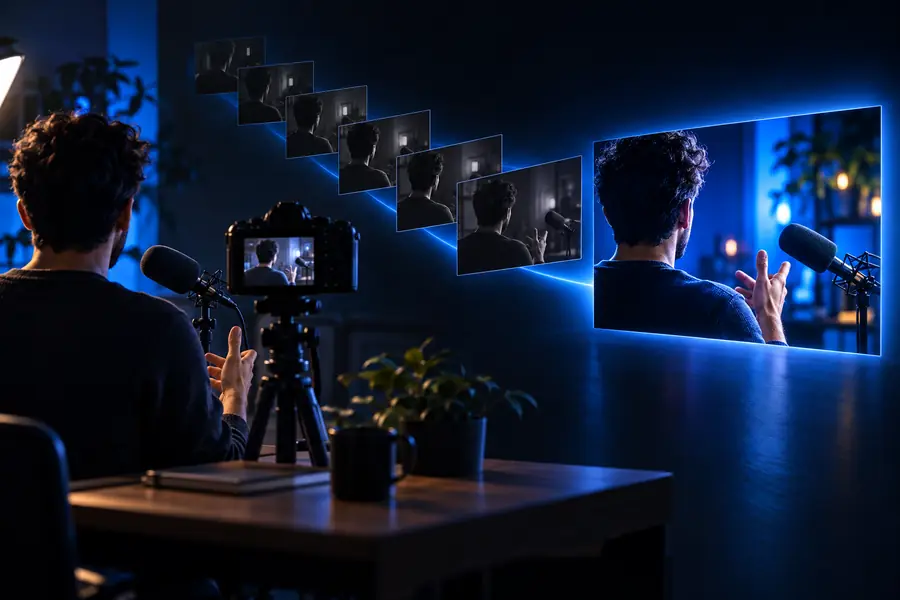
Video editing guide

A practical guide to how to use latentsync youtube edits

If you are looking up how to use latentsync youtube footage, begin with a speaking clip you have permission to edit and a clean replacement audio track. Latentsync is an audio-conditioned lip-sync model: it aims to make visible mouth movement follow speech. Treat its output as an editing draft, then check the full clip before publishing.

Check the destination’s available tools.
Latentsync site hero illustration

Know the limits before you edit

Lip sync solves a narrower problem than video production. Plan around the source footage and the checks you will still need to do yourself.

It cannot repair a poor source shot

A face hidden by a hand, turned away from the camera, or cut off at the mouth gives the model less visible information to work with. Motion blur and abrupt cuts also make a result harder to judge.

WorkaroundStart with a short, well-lit shot where one speaker’s mouth stays visible. Test a difficult shot separately rather than assuming the entire video will behave the same way.

It cannot make the voiceover accurate

Changing mouth movement does not verify a script, improve pronunciation, remove recording noise, or ensure the spoken claims are true. A convincing visual match can still accompany the wrong words.

WorkaroundFinalize and listen to the replacement audio first. Check names, timing, and factual claims against your script before generating a visual draft.

It cannot finish a YouTube upload

Lip-sync output is not a completed channel edit. Titles, captions, music permissions, export settings, and the final review remain separate tasks; this page does not imply direct publishing from the model.

WorkaroundBring the reviewed clip into your usual editor, check it alongside the full soundtrack, and export using settings appropriate for your project.

It cannot grant permission to use a likeness

Making a person appear to say replacement speech raises consent and disclosure questions, particularly when viewers could mistake the result for an authentic recording.

WorkaroundUse footage and audio you are entitled to edit, obtain the speaker’s permission where needed, and consider a clear disclosure when the altered speech could mislead viewers.

Prepare, sync, and inspect

The useful sequence is deliberately small: settle the audio, make a draft from a suitable shot, and evaluate it in context.

Prepare one speaking segment

Choose footage with a clearly visible face and isolate the segment that actually needs new speech. Record or edit the replacement voiceover, then listen for clipped syllables, long silences, and words that begin before the intended shot. Keep an untouched copy of the original for comparison.

Create a lip-sync draft

Provide the video segment and its intended speech audio through a Latentsync-compatible workflow. Follow that workflow’s current input instructions rather than assuming this site supplies an editor, a particular upload control, or a guaranteed export format. For an initial test, use a brief, uncomplicated shot before processing more material.

Review the result in your edit

Watch with sound at normal speed, then inspect difficult consonants and shot boundaries closely. Compare the draft against the original for unwanted changes to facial expression or identity. If it passes, place it back in the timeline, check captions and adjacent cuts, and review the finished video before upload.
What changes between source and draft?

Keep the source and the reviewed candidate side by side. The goal is a better visual match to the chosen speech, not a different person or a rewritten video.

Original footage Reviewed sync draft
1

Speech reference

Original footage

The speech captured with the original take, if present.

Reviewed sync draft

The replacement audio selected for this edit.

2

Mouth movement

Original footage

Follows the original performance.

Reviewed sync draft

Should follow the replacement speech closely enough to pass visual review.

3

Face identity

Original footage

The source speaker as recorded.

Reviewed sync draft

Should remain recognizably the same speaker; inspect for unwanted changes.

4

Shot composition

Original footage

The framing and background you selected.

Reviewed sync draft

Should remain suitable for the surrounding edit; check for visible artifacts.

5

Timing

Original footage

Matches the original take and its existing cut points.

Reviewed sync draft

Needs to be checked against the new speech and neighboring shots.

6

Publication status

Original footage

Source material for an edit, not automatically ready to publish.

Reviewed sync draft

A candidate clip until permissions, captions, sound, and the complete video are reviewed.

Look beyond the mouth match

A side-by-side view is useful, but a still image cannot establish that an entire moving clip is synchronized.

Original demonstration frame

Original frame from a Latentsync demonstration
Corresponding synced frame from the demonstration
Synced demonstration frame

These are demonstration frames, not a preview of your clip or a guarantee of its result. Judge your own output in motion with its actual audio; pay attention to lip closure, facial consistency, and the first and last frames of the edit.

Adapt the checks to your channel

The same lip-sync draft can face different editorial risks depending on why you are changing the speech.

Talking-head creator

You have corrected a line after filming and want the replacement narration to fit the existing shot.

Check that the corrected words match the visible mouth without changing the speaker’s expression unexpectedly. The guide to latentsync for youtube puts that short replacement shot in the context of a complete channel edit.

latentsync for youtube

Example researcher

You are deciding whether an interview close-up, presentation, or other speaking shot is a sensible first test.

Compare shot conditions before committing to a long edit. The page on latentsync examples youtube helps you think through which visual situations deserve closer inspection.

latentsync examples youtube

Technical editor

You already manage source clips and audio in a repeatable production pipeline.

Keep original assets and draft outputs distinguishable so a failed test is easy to revisit. The latentsync comfyui workflow guide discusses a more technical route for organizing that process.

latentsync comfyui workflow

Take a short clip through the full review

Test the edit, then trust your eyes and ears

Begin with footage you can use and replacement speech you have already checked. Explore the available tools at the destination, create a short draft if its workflow supports your inputs, and bring the result back to your editor for a complete review. A plausible frame is only the start: the final decision belongs to you and your production requirements.

  • Keep the original clip for comparison.
  • Review the result with its actual soundtrack.
  • Check consent and disclosure before publishing.

Questions about using Latentsync in a YouTube edit

Prepare a video segment with a visible speaking face and the audio you want that person’s mouth to follow. Make sure you have the rights and permissions needed to alter and publish the footage. Keep the original file so you can compare it with the draft.

Start with a short segment that contains the speech you need to change. That makes it easier to spot timing errors, visual artifacts, and trouble around cuts before you commit to a longer edit. You can then decide which additional shots actually need processing.

Watch the clip with its replacement audio at normal speed and inspect words where the lips should clearly close or open. Look for changes to the speaker’s face, unstable frames, and awkward transitions into neighboring shots. Review the complete video as well, since a convincing isolated segment can still feel wrong in context.

This guide does not assume any direct YouTube publishing feature. Treat lip syncing as one stage of production, then use your normal editing and upload process for the finished video. Confirm the capabilities of the particular workflow you choose rather than relying on this page for interface or export promises.

A model’s ability to change visible speech does not give you permission to use another person’s likeness or recording. Obtain the rights and consent appropriate to your project, and avoid presenting altered speech as an authentic statement. Consider disclosure whenever viewers might otherwise be misled.

Start creating
Start creating