Choose a clear speaking shot
Pick footage you have permission to use, with one visible speaker and a mouth that stays reasonably clear. Note where the shot begins and ends in your existing edit.
Creator workflow
Latentsync is a video lip-sync model, not a YouTube publishing tool. Use it as one possible step when a recorded face needs to match replacement speech, then review the result in your editor before uploading.
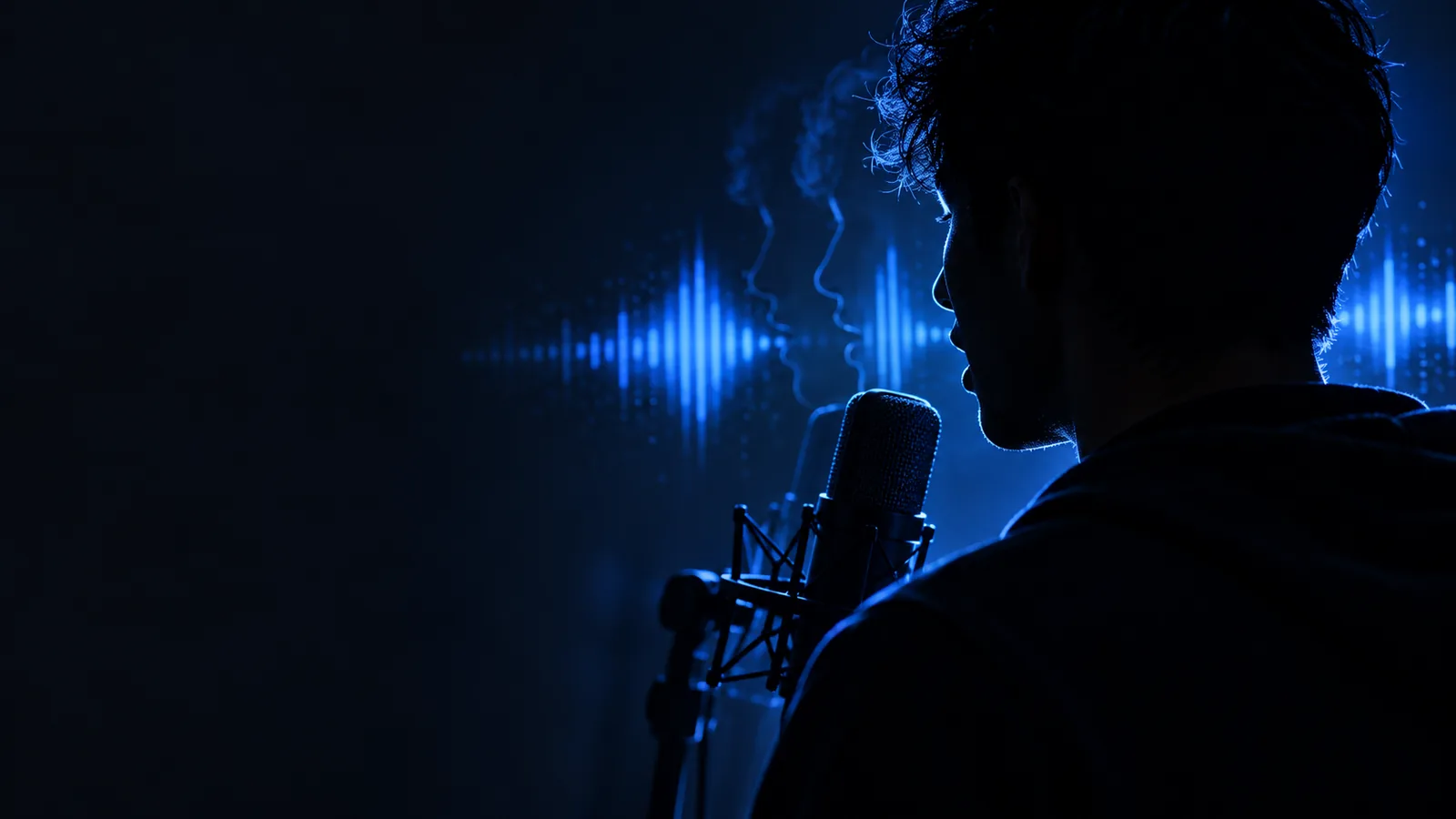
A synced mouth is only one part of a finished video. These boundaries matter more than the effect itself when viewers will see and hear the clip at full size.
A lip-sync model does not replace your editing timeline, export settings, thumbnail work, captions, or upload review. Treat the generated segment as source footage for a separate edit.
WorkaroundBring the result into your usual editor and check the finished export before publishing.
A small, hidden, or frequently turning face gives the model less visible mouth detail to work with. Fast cuts and hands crossing the face can make an edit harder to assess.
WorkaroundStart with a short, well-lit shot where the speaker faces the camera.
Changing the apparent speech of a real person can mislead viewers even when the mouth movement looks convincing. Permission to use the footage and audio remains your responsibility.
WorkaroundUse material you are authorized to edit and disclose materially altered speech where appropriate.
Audio timing, visual artifacts, and transitions still need human review. Results may vary between shots, so a successful short test does not establish that an entire video is ready.
WorkaroundInspect difficult frames and listen through the exported video, not just the isolated synced clip.
Keep the test small enough to judge closely before committing to a longer edit.
Pick footage you have permission to use, with one visible speaker and a mouth that stays reasonably clear. Note where the shot begins and ends in your existing edit.
Prepare the speech you want the shot to follow. Check that it begins at the intended moment and that pauses make sense alongside the speaker’s expression and body movement.
Compare the changed mouth movement with the original, including consonants, pauses, and frames near cuts. If a moment looks distracting, revise the source selection or shorten the segment.
Return the segment to the full timeline. Check audio levels, captions, transitions, and the exported file before deciding whether the finished video is suitable to upload.
A broader example, a detailed walkthrough, and an editing workflow answer different questions. Choose the one that matches the decision in front of you.
See which kinds of creator footage are useful to compare before choosing a shot.
Follow a closer walkthrough from source clip selection through final review.
Explore a node-based approach if your editing process already uses ComfyUI.
A before-and-after pair helps show what changed, but still images cannot establish whether speech stays aligned throughout a moving shot.

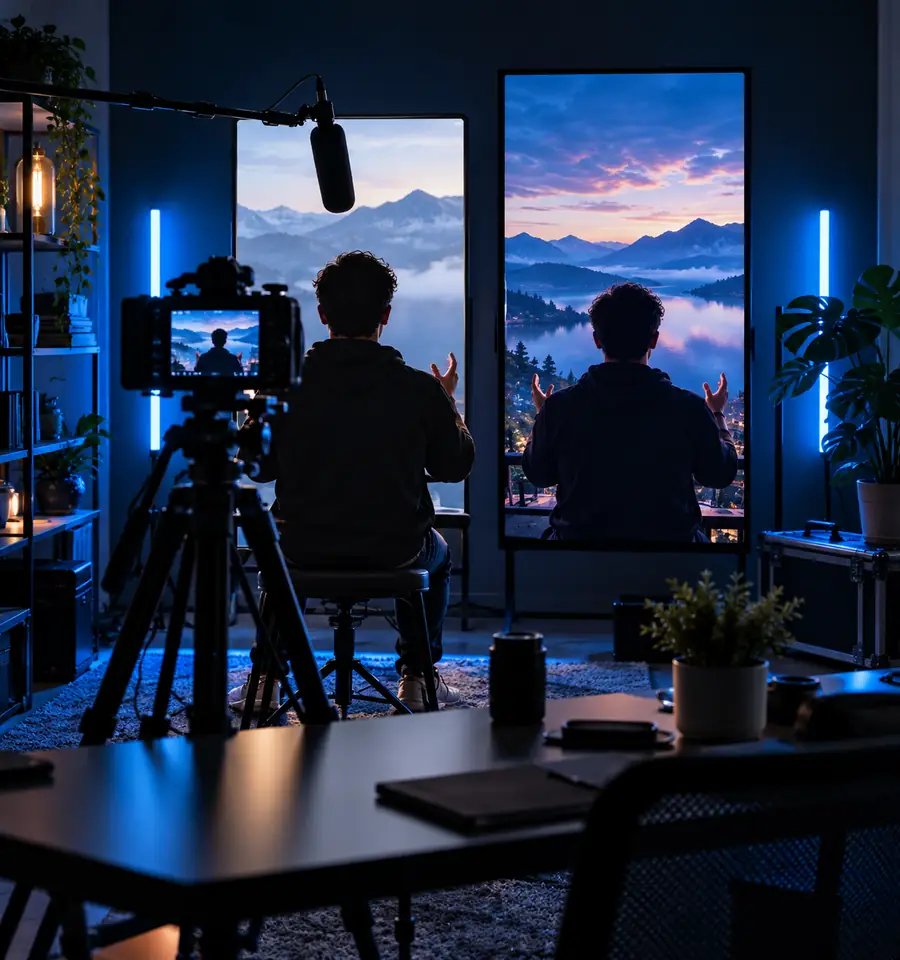
Compare the full moving segment as well as the paired frames. Check the mouth at the start and end of words, then watch the edit at normal playback speed.
Different creators have different reasons to test a speech replacement. In every case, the edited segment should support a truthful, understandable finished video.
A short on-camera instruction needs a corrected spoken line, while the surrounding demonstration remains usable.
Test the corrected line in isolation, then check that the new words still agree with the actions on screen.
how to use latentsync youtubeA presenter segment is being adapted with authorized replacement speech for a revised explanation.
Compare short candidate shots and favor one with a steady, unobstructed view of the face.
latentsync examples youtubeAn editor wants to evaluate lip sync alongside other processing steps rather than treat it as a one-click final edit.
Keep the source, audio, synced result, and final timeline distinct so a weak segment can be replaced.
latentsync comfyui workflowA channel is deciding whether lip sync is appropriate for its footage and disclosure standards at all.
Compare approaches before changing a real person’s apparent speech, and retain the original for review.
latentsync alternativesThis comparison keeps expectations clear: a lip-sync pass changes a clip, while publishing requires a complete editorial and platform review.
Lip-sync pass
Align visible mouth movement with chosen speech.
Finished YouTube edit
Present a coherent, publishable video.
Lip-sync pass
A usable face shot and prepared audio.
Finished YouTube edit
All footage, audio, graphics, captions, and other edit elements.
Lip-sync pass
Inspect mouth movement and artifacts within the affected shot.
Finished YouTube edit
Inspect cuts, framing, overlays, and continuity across the full timeline.
Lip-sync pass
Check whether visible speech matches the replacement line.
Finished YouTube edit
Check levels, clarity, music, and timing throughout the export.
Lip-sync pass
Confirm permission to alter the source person’s footage and speech.
Finished YouTube edit
Review the complete video for necessary permissions and appropriate disclosure.
Lip-sync pass
A segment to evaluate and edit further.
Finished YouTube edit
A reviewed file ready for your own upload process.
If a lip-sync pass fits your project, begin with a short, authorized clip. Check what the available tool supports before committing to a workflow, and judge the resulting footage in the context of your complete edit.
Common questions about where lip sync belongs in a creator’s publishing process.
Latentsync is a lip-sync model that may be relevant when a video shot needs to follow different speech. Whether a particular tool, clip, and output fit your project depends on the tool’s supported workflow and your footage. You still need to edit, review, and upload the finished video separately.
No. Lip-sync processing and YouTube publishing are separate tasks. Plan to assemble the result in an editor and use your normal upload process.
Begin with a short shot of one visible speaker whose face is well lit and not repeatedly obscured. A small test makes it easier to spot mismatched speech, unusual mouth shapes, or problems at a cut before you work on a longer sequence.
Consider how a viewer might interpret the edited speech, particularly if it appears to show a real person saying something they did not say in the original recording. Obtain the necessary permissions and check YouTube’s current policies for altered or synthetic content before publishing.
Watch the moving clip with sound at normal speed, then inspect any frames where the mouth or face looks unnatural. Review the complete exported video as well: a strong isolated segment can still feel out of place because of a cut, caption, or audio change.